June 8, 2006

Vista Beta 2 Launched to the Public

Filed under: Vista — Marcus Tettmar @ 6:51 am

The Windows Vista Customer Preview Program was launched yesterday evening making Vista beta 2 available to everyone. Until now it has been confined to members of the Technical Beta Program and MSDN subscribers. Now anyone can download it or order a copy on DVD. So if you are wanting to try Vista out now is your chance.

http://www.microsoft.com/windowsvista/getready/preview.mspx

June 6, 2006

Screen OCR – Recognising Graphical Text

Filed under: Automation, Scripting — Marcus Tettmar @ 10:26 am

[UPDATE: 27.3.2018 – Since this article was written Macro Scheduler now has built in Screen OCR functions]

We often need to write scripts that extract text from a window or some area of the screen. Usually this can be achieved via the clipboard, or commands such as GetWindowText and GetControlText, or via a Win32 API function. However, this only works with text that really is text, and with objects that expose text as a property of itself. For example, many Windows controls have a caption property which exposes the text associated with it. In this instance we can write code to capture the text by accessing that caption property.

But don’t forget that anything you see on the screen is really graphics. Text is rendered using fonts and fonts are just made up of a combination of coloured pixels. Not all text that you see on the screen is accessible via a simple object property. Sometimes the text you see is just pure graphics. Yes, it reads like text to us humans – we can make sense of it. But to the computer it is a sequence of dots. An arrangement of pixels. So how can we write a script to ‘read’ that text?

Well in these cases where the text is not exposed as a textual object, and is only represented graphically, the only way forward is to use Optical Character Recognition (OCR). There are many OCR packages available on the market which will read an image file, scan it for recognised characters and output ASCII text. So one approach would be to automate one of these OCR applications with Macro Scheduler. Macro Scheduler could first take a screen shot (using the ScreenCapture function) and then automate an OCR application, having it read the screenshot and output the text to a file.

But a less cumbersome approach is to use an excellent tool called Textract from Structurise. Textract is a library that will scan a window, screen area or image file, and output recognised text. Textract comes with a command line interface that makes it ideal for use within a Macro Scheduler script. Here is a small example script which scans the foreground window and retrieves all the text within it:

//Path to Textract
Let>TxPath=c:\\\textract

//Focus the App if necessary
//SetFocus>Notepad*

//Get bounds of active window
GetActiveWindow>title,x1,y1,w,h
Let>x2=x1+w
Let>y2=y1+h

//Set Run to run hidden and to wait for completion
Let>RP_WAIT=1
Let>RP_WINDOWMODE=0

//First time you run this on a new system uncomment next line
Run>%TxPath%\\\textra.exe /build

//Run Textra to retrieve all text in window.  Make sure we run hidden!
Run>%TxPath%\\\textra.exe /capture %x1% %y1% %x2% %y2% /ascii %TxPath%\\\tmpOutput.txt

//Read from output file into script variable and delete file
ReadFile>%TxPath%\\\tmpOutput.txt,TheText
DeleteFile>%TxPath%\\\tmpOutput.txt

//Just as an example display the text
MessageModal>TheText

This script simply displays all the text found in the entire window in a message box. You would probably want to parse the text in some way. Or you may just want text from a specific part of the window. You can do that by making the screen coordinates more specific and making the rectangle smaller. This is a really slick way of identifying text that isn’t otherwise visible as text to Macro Scheduler or Windows.

To get a list of options type textra.exe on the command line and see the documentation that comes with Textract.

You can download Textract from:
http://www.structurise.com/textract/

June 1, 2006

Rant: Windows Apps Should LOOK Like Windows Apps!

Filed under: General — Marcus Tettmar @ 1:03 pm

The other day a friend of mine phoned me. He was trying to install the software that came with his new Nokia mobile phone. He said he was beginning to go mad. He just couldn’t see what he was missing. He said that when he started the installer a screen came up with a license agreement which he had to confirm. But the “Next” button was grayed out. He couldn’t continue. He couldn’t see what he had to do to continue. He was at the end of his tether, so he phoned me.

I set up a BeamYourScreen session and connected up to his PC and started the installer. I could see what he meant. The installer was kind of metallic. All the controls and objects looked completely unlike anything I had ever seen before. No idea why, because I wouldn’t even say it looked “cool”. When we got to the license screen the continue button was disabled. I noticed a tiny (really tiny) little round thing to the right of the license text, on a kind of dashed vertical line. I clicked on it and was able to drag it down. Yep, sure enough it was a scroll bar and when we got to the bottom the continue button became enabled.

Now, it took me only a few moments, but it was not immediately obvious. Gerry was kicking himself and felt a bit embarrassed but I don’t think he should have felt that way. None of the objects on the screen looked like familiar Windows objects. The scroll bar was obscure and completely unlike a regular scroll bar. There’s no reason why Gerry should have known immediately what he was supposed to do. He uses Windows and was installing software for Windows. He knows how Windows works and what Windows scroll bars look like. He shouldn’t be expected to have to use an unknown, alien, design.

If you are developing software for Windows then it should LOOK like Windows. There’s a reason why Windows uses standard controls and a standard look and feel. Sure, colours and fonts can be changed, but that’s up to the user. A Windows app should adjust automatically to follow the user’s selected layout. An application should not make up a whole new look and feel. Whatever you may think of the Windows user interface, no matter how much a designer may dislike the way Windows looks … well that’s tough! You’re designing for Windows, so that is how it has to be. And surely you want your customers to know how to use your software! Surely that’s what is important. Therefore your software should look familiar. It should use standard Windows objects and follow standard Windows conventions. My mate was close to going back to the shop and changing his Nokia for another phone because he couldn’t install the software that let him connect his laptop to the ‘net like he wanted.

Fine, supply skins that let your users change the look and feel of your application, but do this AFTER it has installed. What is the point of an installer that looks alien and doesn’t follow the Windows look and feel? Users shouldn’t have to learn a whole new user interface design just to install your software. Frankly, Nokia should know better. The interfaces their phones use are widely regarded as the most user friendly. But when they write software for PCs they shouldn’t reinvent the Windows interface!

May 31, 2006

Microsoft Shames Pirates

Filed under: General — Marcus Tettmar @ 9:05 am

A page on Microsoft’s website currently lists almost 100 cases they are taking against software pirates that have been discovered through Windows Genuine Advantage. You can click on each case and see more details of their alleged crimes.

This could be rather embarassing for companies that are distributing illegal copies of Microsoft Software and the details could be found by potential shoppers when searching the web for information on these firms. If you’re looking to buy Microsoft Software check this out first and avoid these people. It will be interesting to see how effective this public shaming approach turns out to be.

Partner Piracy Alerts

May 25, 2006

Vista Beta 2 Released

Filed under: Vista — Marcus Tettmar @ 5:44 am

So Vista Beta 2 was made available to MSDN subscribers this week. We installed a copy yesterday and my first impressions are good. It installed quickly with the minimum of fuss and the performance is good – it seems pretty quick. Beta 1 was agonisingly slow so it’s good to note that beta 2 is faster. No doubt beta 1 had lots of debug/diagnostic code in it which was slowing things up, and they’ve probably worked on improving performance generally since beta 1. Macro Scheduler 8.0.3 runs nicely in beta 2, as I expected 🙂

Now that beta 2 is here things should start to settle down, documentation will hopefully improve, and more developers will start working on Vista-izing their software. So things should become clearer and we can hopefully get a better idea on what it will take to create a Vista version of AutoLogon. Watch this space.

May 22, 2006

Be Helpful!

Filed under: General — Marcus Tettmar @ 11:36 am

As a Macro Scheduler envangelist, I keep an eye on several usenet newsgroups for any reference to windows automation software, or anyone asking for help with automating some task. I also subscribe to Google Alerts so I know when a new article has been posted which contains certain key phrases. Now, of course, with my PR hat on, one thing I hope for is an opportunity to answer the question by demonstrating how Macro Scheduler can help solve the problem. However, the wrong thing to do is just post a link to Macro Scheduler in response to any question vaguely related to macros in Windows. This is just the sort of thing that upsets people, especially in the Usenet community.

However, this is exactly what I’ve seen other people do. I’ve seen a number of messages from software companies which are nothing more than boilerplate sales notes used in response to someone with a specific need. At the very least, if you think your software will solve the problem, then post an example showing how! Often though, you don’t even need any third party software to solve the poster’s problem.

For instance, I saw a message recently where someone wanted to schedule a call to a web page. All he needed to do was have his browser go to a specific URL once a day. That’s it. The URL did some processing on his web application, so it just needed running once a day. No interaction required – just call up the URL and then close the browser. He had created a Windows Task Scheduler entry which ran Internet Explorer with the URL on the command line. But the drawback was that it leaves a copy of IE running, and when he was using the PC the IE window would get in his way.

A developer of a basic macro tool had posted a response which said nothing more than “you can use our software to do this” – with a link to their website. No indication of how. But, you don’t need any third party software to automate that! You can use VBScript, built into Windows, and IE’s ActiveX interface to do the whole thing transparently. So I wrote a few lines of VBScript code and explained how to schedule it. No need to pay for any other tools.

What did I get out of that? Well, apart from the satisfaction of trumping a wannebe competitor, I helped someone with a useful response. That feels good. Of course I also mentioned Macro Scheduler and a link to mjtnet.com in my signature. Maybe, one day, the poster, or someone who reads that thread, will remember that and check out Macro Scheduler. Maybe their requirements will one day be greater and they will need to do other things that can’t be done with built-in tools alone. Hopefully they’ll remember me, because I gave a helpful response, and they’ll come and check Macro Scheduler out.

May 19, 2006

Macro Scheduler Success Story – eDocFile, Inc.

Filed under: Success Stories — Marcus Tettmar @ 7:05 am

By Keith Passaur.

eDocFileThree years ago I started eDocFile, a company that specializes in image enabling applications. Before then I was a salesman working for a document imaging company and the products I sold were too complex and expensive for most users. During my training I learned about how years ago people wrote programs that pulled information from a user’s screen (screen scraping) and passed it onto other applications. I realized that if I could find an easy way to do this I could pull a unique piece of information from a users screen and use it to relate an image to the screen. This would allow the user to have an image enabled application.

Image Enabling an application is allowing images of documents to be retrieved from an application that contains data that relates to the documents. For instance, a user is in their accounting software application, they click on an icon or press hot keys and an image of the document appears on their screen that relates to the record in their accounting application. This is accomplished by screen scraping the application (capturing the data on the screen) and passing it on to a method of retrieving the document related to the screen data.

With Macro Scheduler I have been able to capture the screen and do all this. I cannot think of another product that would allow me to do this as easily. One product I developed for this determines what application the user is in, what screen they are on and what information needs to be gathered to scan an image or retrieve an image. Another program I developed works specifically with Loan Origination Software. It is called Scrape LOS.

After spending years testing other products, the National Association of Mortgage Brokers Strategic Alliance Committee approved Scrape LOS. The reasons were because of ease of use and price. Without Macro Scheduler this product could not have been developed and sold in the price range they were looking for. One client spent over eight thousand dollars on an application to scan and file loan documents. They dropped that product within six months and went with Scrape LOS. In a nutshell it is the old 80/20 rule. This application has eighty percent of the features at twenty percent of the price and twenty percent of the complexity.

Other products have also been developed with Macro Scheduler. The latest being one that productively routes faxes to email accounts, printers and folders based upon a set of rules. In its first week of release three copies of it were sold. I cannot say enough good things about Macro Scheduler as I am not a programmer, yet I can write these scripts that get the job done, quickly and economically.

Keith Passaur
President eDocFile, Inc.
www.edocfile.com

If you have a Macro Scheduler Success Story I’d love to hear from you. Drop me a line.

May 17, 2006

Use the Debugger!

Filed under: Scripting — Marcus Tettmar @ 8:55 am

[Update 23 Feb 2011: Click here for a video tutorial of the debugger in Macro Scheduler 12]

The first thing I turn to when helping someone get their script working is the debugger. But I’m often surprised to hear people say they didn’t know about the debugger. The debugger is an invaluable tool to help you find problems in scripts and is dead easy to use.

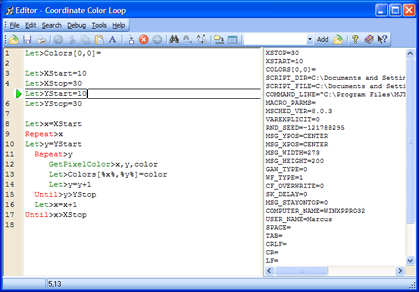
Macro Scheduler Script Debugger

Here’s how to use it. Open your script in the script editor. You’ll want to enable the watch list. This shows you the value of script variables and updates them as they change. Select “Show Watch List” from the “Debug” menu. This displays the watch list on the right of the editor, as can be seen in the picture above.

Step Through Line by Line. Place the cursor on the first line of the script and hit F8. F8 executes the current line and then stops and waits for you to press F8 again. This allows you to “step” through the script one line at a time. You’ll see the green arrow next to the current line and a border around it. You can now follow the flow of execution through the script at your own pace. Every time a variable is created you’ll see it appear in the watch list and when a variable value changes you’ll see the new value there.

Breakpoints. Note that F8 executes the current line so in most cases when you start debugging you’ll want to put the cursor on the first line. Sometimes you may just want to debug a part of the script so you can start at that point. That’s fine as long as the code before that point doesn’t set things up that are required to make the bit you want to debug work, such as initialising variables. If that is the case you can set a “breakpoint” just before the bit you want to step through and then run from the top. To set a breakpoint, put the cursor on the line where you want the breakpoint to be and select Debug/Insert Breakpoint. Now place the cursor on the first line and select Debug/Run. The macro will now run as normal but stop when it reaches the breakpoint and wait for you to step onwards using F8.

The Watch List is a very important tool in tracking down why values aren’t what you think they should be or why certain outcomes that depend on variable values take place. With the watch list you can see when a value changes and what line caused it to change. This is extremely helpful and can highlight scripting errors and bad logic.

Side Effects of Debugging. One thing to bear in mind is that the act of debugging slows execution down, since the script waits for you to execute each line. If a script is failing because it is running too fast and doesn’t have sufficient code to ensure the system is ready for each step (e.g. a lack of WaitWindowOpen commands) then you will probably find that when you debug the script it works! So here’s a tip: if the script works when you debug it but doesn’t when you run it, the problem is almost certainly a timing issue and you need more intelligent delays.

So if you have a script which does something unexpected at a certain point and isn’t working how you want it to, or throws up a weird error and you’re not sure which part of the script is the problem then use the debugger. You’ll then find out which bit of the script is the problem and can step through it to find out what the cause is.

[Update: In version 9.0 the debugger is part of the Advanced Editor. From Macro Properties click the “Advanced Editor” button.]

May 16, 2006

Switch off to Save the Planet

Filed under: Automation, General — Marcus Tettmar @ 8:31 am

Recent research from Computacenter and Fujitsu Siemens finds that the 200 largest UK companies waste £61m a year on unneeded electricity by using power-hungry, inefficient PCs. This wasted electricity equates to over 2.8 million kWh of energy.

Of course the recommendations from Computacenter and Fujitsu Siemens are that these businesses should throw out their desktops and replace them with “Green-PCs” made and supplied by, say, Computacenter or Fujitsu Siemens. Though, I’m not so sure that throwing out thousands of perfectly good desktop computers is that great for the environment either!

In fact the report also finds that “more than a third (37%) of workers don’t switch off PCs when they leave the office” and “by adopting green IT equipment and switching off desktops when not in use the top 200 companies will make annual savings of around £305,000 each”. One of the largest UK corporations could save up to £2m by adopting such policies.

So for those in a rush to get out the door at 5pm, or who forget to switch off their machine, why not create a simple Macro Scheduler macro which shuts down the PC automatically at, say, 6pm:

ShutDownWindows>0

Just in case you might be working late you could add a 30 second warning allowing you to cancel:

Let>ASK_TIMEOUT=30000
Let>Prompt=Shutting Down in 30 Seconds. No to Abort, Yes to Shutdown now.
Ask>Prompt,cont
If>cont=YES
  ShutDownWindows>0
Endif

May 11, 2006

Vista Application Compatibility

Filed under: Vista — Marcus Tettmar @ 12:29 pm

As you know we have been working hard on ensuring Macro Scheduler is compatible with Vista and our latest 8.0.2 maintenance release is built with support for Vista. But what about other applications?

Well, Microsoft’s “Application Experience Team” have started their own blog to provide resources for testing application compatibility and “To help make the Application Compatibility process manageable and successful for you, and help us learn about your experiences”. Their first post links to Microsoft Connect where you can sign up for the Application Compatibility Toolkit V5.0 Beta program to receive tools to test your existing applications for Vista compatibility.

Check out All Things AppCompat.