SOAP and WSDL Interaction
A recent post in the forums asks how to consume a SOAP service with Macro Scheduler. View the post for some techniques and examples.
Comments Off on SOAP and WSDL Interaction
Macro Recording and Automating Windows with Macro Scheduler – Tips & News
A recent post in the forums asks how to consume a SOAP service with Macro Scheduler. View the post for some techniques and examples.
MacroScript Workflow Designer 1.2 is now available.

Workflow Designer lets you create flowcharts and attach Macro Scheduler code to each step. You can then run your flowcharts.
This update fixes a few bugs including:
As you know Macro Scheduler has Telnet, FTP and HTTP functions built in (and with v11 FTP/HTTP will support SSL). But what if you want to run some other secure protocol such as SSH?
We’ve taken the view not to reinvent the wheel and add every possible secure communications protocol to Macro Scheduler, especially as there are some great components already available that you can use in your scripts. Rather than add bulk that won’t always get used, I’d prefer to leave the security stuff to the experts and use a plug-in component when needed, such as one of the Active-X components from WeOnlyDo Software.
WeOnlyDo make Active-X components for all kinds of things, such as SSH and SFTP as well as the more general protocols Telnet, POP3, SMTP, amongst others. I recently downloaded their SSH component to help out a customer who needed a macro to access an SSH server, and was impressed with how easy it was to implement.
You can download the SSH component here.
Here’s an example I put together which logs into an SSH server, changes directory to /usr/bin and performs a directory listing, returning and displaying the results:
VBSTART
Function SSHExample(server,username,password)
  Dim ssh, a, resp

  Set ssh = CreateObject("WeOnlyDo.wodSSHCom.1")

  ssh.HostName = server
  ssh.Login = username
  ssh.Password = password

  ' set Blocking to true or false - blocking means the script is synchronous and waits for each method to complete
  ssh.Blocking = True

  ' Protocol: 0: Raw, 1: Telnet, 2: SSH1, 3: SSH2, 4: SSHAuto (Auto Negotiate)
  ssh.Protocol = 4

  ' remove ANSI codes from received data
  ssh.StripANSI = true

  'now connect
  ssh.Connect

  'wait for initial prompt
  ssh.WaitFor("regex:[\]\$] $")

  'issue a few commands, returning the output from the final one as the function result
  ssh.Execute "cd /usr/bin" & vbCRLF, "regex:[\]\$] $"
  SSHExample = ssh.Execute("ls -al" & vbCRLF, "regex:[\]\$] $")

  'finally disconnect
  ssh.Disconnect
End Function
VBEND

Input>server,Server:
Input>username,Username:
Input>password,Password:

// here we call the above VBS function to connect and run the command "ls -al"
VBEval>SSHExample("%server%","%username%","%password%"),response

//output the response
MessageModal>response
Notice the Execute statements above which execute a command and wait for the specified prompt to appear. The regex is simply waiting for any “]” or “$” found at the end of a line, which in my case signifies a prompt. Instead of using regex you can provide the exact prompt.
The component is nicely documented in the help file, with useful examples, so you should find it pretty easy to get up and running.
If you use any other components that work nicely with Macro Scheduler, let me know.
Macro Scheduler 11 Beta build 015 is now available. You can grab it from your account now. For details of fixes see: http://www.mjtnet.com/usergroup/viewtopic.php?t=5018
If you download the beta please keep an eye on the Beta Forum for update announcements. Each build will be announced there. Please also report any issues to the beta forum.
Having gone through a period of closed beta testing Macro Scheduler 11 Beta is now available to all registered customers. All registered users can log into their account and download the beta now.
Just a summary of some of the main new features:
You’ll find a fuller list and release notes here. Please read the release notes before installing.
Please help test this version and report any issues to the Macro Scheduler Beta forum.
Questions:
When will the beta expire? The beta expires 31st December 2008.
So, when will Macro Scheduler 11 be released? All being well beginning of January 2009, possibly sooner.
And how much will it cost? Those with valid upgrade protection will get v11 at no additional cost. Otherwise you will need to purchase an upgrade. Current upgrade prices can be viewed on our upgrade page. There are no plans to change these prices at this stage. If you have v10 but don’t have upgrade protection you can purchase it by logging into your account.
Every now and then people ask me how they can distribute other files along with their Macro Scheduler executables, such as DLLs or image files that your script requires.
All software publishers face this problem and usually use an Install file creator, such as the free Inno Setup. You create a package of files and define how they are installed as well as what shortcuts to create etc. Most software you download is installed using software like this.
For small packages you might get by with a simple zip file, or, better, a self extracting zip file. WinZip will create one of these for you. There’s also a tool that already comes with Windows called iexpress.exe. Click Start/Run and type iexpress.exe and hit Enter.
This starts the IExpress Wizard which walks you through creating a self-extracting or self-installing package. It’s very simple to use. Just choose the files you want to be included in the package and select which one should be run on completion. You end up with an EXE you can give to your users/customers which when run will extract the files to a temporary folder and run your main script executable.
Another way is to embed the files directly into your script and have your script extract them at runtime before it does anything else. Dick Lockey describes a way you can do that here. The next version of Macro Scheduler, version 11, makes this easier. It will include a tool to import any binary file into the script and a function called ExportData to create the file at runtime. If you use this method remember to write the files to somewhere you have access to. In a least privileged user environment that won’t necessarily be the EXE’s program folder. The temp folder might be safest. And if you do that, delete them afterwards.
Well we’ve been busy since my last post on code folding. The main changes include:
* A completely overhauled script editor with even better code folding and bookmark support and improved syntax highlighting. The advanced editor and macro properties windows have been combined into one to make things much simpler and give easy access to things like the custom dialog designer and the debugger.
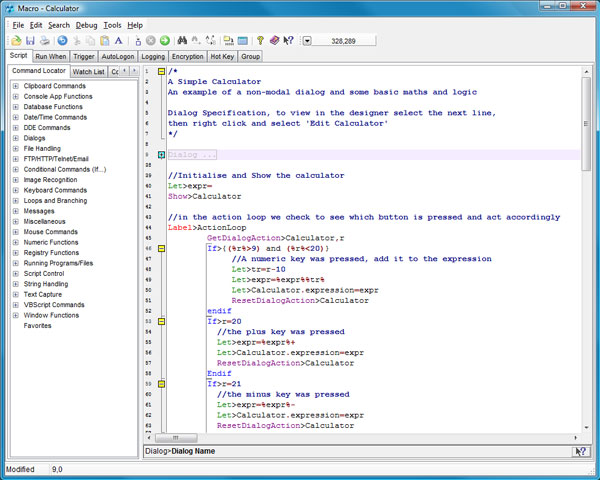
* Macro Scheduler 11 has full Unicode support. Finally use any language characters in your scripts, detect Unicode text and output Unicode text.
* Competely overhauled FTP functions with added TLS/SSL support and support for more flavours of FTP server.
* Added SSL support to HTTPRequest
* With v11 you can compile macros in “console app” mode and write to STDOUT
* We’ve added the ability to embed any kind of file in a script, and export it at runtime.
* And more.
We’re just starting the initial stages of closed beta testing. Hopefully if all goes well we’ll be able to open the beta up in a month or so. In the mean time I’d be interested to hear from anyone with a need for TLS/SSL FTP support. If you have a TLS/SSL enabled FTP server and would like to do some testing please let me know.

You too can sell Macro Scheduler through our Affiliate program.
We are offering commissions of 20% on all sales made through your website. Through our Affiliate partner Shareasale.com you can join up immediately and start selling today. There are no set up fees and signing up is simple.
Single user licenses start at $115 and our 25 Pack Enterprise license is $4600, so you can earn from between $23 and $1150 per sale, and that’s not including popular options such as upgrade protection.
For more info see:
http://www.shareasale.com/shareasale.cfm?merchantID=10663
I recently bought a new PC. It’s one of those things I always put off. The thought of installing all my software again, finding the original disks or download links, copying over all the data and settings, and getting the new PC mirroring the old one sends shivers up my spine. It always seems to take days, and then you usually find some obscure component is missing and something just doesn’t work properly. Especially when it comes to getting development environments running in the same way.
Vista and XP have a way to copy documents and settings, but that doesn’t help with the software. So I had a look around at other solutions that might help.
I discovered that Acronis offers a plugin for True Image Echo called Universal Restore which is supposed to allow you to restore a backup of your PC to any other PC. In doing so you end up with an exact replica of the original PC. It works by detecting the hardware of the new PC and injecting the correct drivers into the Windows Hardware Abstraction Layer during restore. Sounds pretty amazing. I read a number of very positive reviews.
Unfortunately I wasn’t able to get it to work. I kept getting errors during restore. But I think my unusual configuration maybe to blame. I would still recommend Acronis True Image for backups though. I didn’t really want an exact mirror image anyway – just specific applications and folders.
Then I found out about PCmover from Laplink. Their website says:
PCmover is the only migration utility that moves programs, files, and settings from your old PC to your new PC. Simply install PCmover on both your old and new computers and go! PCmover will determine which programs, files, and settings need to be moved, and when the transfer is complete, your new computer will have the personality and functionality of your old PC plus all of its own pre-installed software. Works with almost any Windows operating system, from Windows 95 to Vista.
To be honest I was a little skeptical that it would work. If you’ve ever tried to just copy an application folder from one place to another you’ll know that it rarely works as there are so many other dependencies. So I was interested to know whether PCmover would live up to it’s claims.
Unfortunately there is no trial version. But I decided to purchase a license anyway and give it a whirl.
Well – I’m impressed – it works! You can let it transfer everything, or choose which applications and settings to migrate. You can undo a migration too. I initially let it transfer all the Windows settings and decided I didn’t want that so I undid the migration and started again, this time being more selective. I did a further migration to transfer a few other apps which I missed the first time around.
Afterwards, about all I had to do was re-enter some license codes. But otherwise, everything worked as if I had installed it from scratch. Only it was effortless. And all my documents and data were there too.
Next time though I reckon the way to go is virtual. My next machine will be a virtual machine. Then when it’s time to upgrade the hardware – when I buy a new physical PC – all I’d need to do is copy the virtual disk file over. Backups become easier to: just make a copy of the virtual disk files. The whole PC becomes more portable too. Copy the virtual machine files to your laptop. Now your laptop has a complete snapshot of your main environment. It’s the future! But you can do it now.
If you’re new to virtual computing checkout the following products:
We already run several virtual environments, for testing and development purposes. Much cheaper than multiple physical PCs and easier than multi-booting. And they can easily be copied to new hardware.
So you see, it is finally possible to migrate to a new PC and avoid the pain!
I can’t name names yet, but I wanted to share this story which I believe is a powerful demonstration of how beneficial software automation can be, especially under the current economic climate.
A small loan company has adopted our software to streamline a number of software processes. By doing so they have become much more efficient and have been able to speed up processing times and reduce labour costs. This has allowed them to offer smaller loans which were previously not profitable.
Within their state two thirds of their competition have gone out of business because they were not able to handle these smaller loans. With the current economic climate meaning people are no longer taking on big loans and mortgages the only way to stay in business is to make small loans pay. Software automation has helped them achieve this. Those that failed to streamline their systems have gone out of business.
This particular company attributes the fact that they are still in business in large part to their use of software from MJT Net Ltd.
There’s never been a better time to cut costs and become more efficient.