April 4, 2006

Macro Scheduler Success Story – Eastman Kodak

Filed under: Success Stories — Marcus Tettmar @ 7:21 am

By Bruce Davis.

KodakMy name is Bruce Davis. I am a Customer Relationship Manager at Eastman Kodak supporting our Electronics and Warehouse Club channels. My organization is responsible for managing a wide variety of styles of customer orders. Some of the orders come in through electronic methods and require little manual intervention. However, our high value equipment business orders cannot be sent electronically because they require so many manual overrides. The Kodak sales teams have much of the basic order data captured in spreadsheets. Other override information is a constant value across all orders for a sales deal. The lead time between our receiving the spreadsheets and when orders must be entered is usually short. The challenge was to quickly and accurately transfer the data from spreadsheet to our sales order system and to add the constant data to the orders.

We receive Excel spreadsheets from our sales team with hundreds of rows representing sales orders. The orders have similar patterns of the same catalog number, quantities, expected delivery dates, etc. for many different ship to addresses. We use Macro Scheduler to copy and paste the data from Excel into our order management system. There are many other overrides and text messages that have to be done on each order. We built a control macro that loops through several modular macros with a counter set to stop after the last row is entered.

Prior to using Macro Scheduler, we attempted to enter these orders manually. This was very time consuming and error prone. Since our order managers are often interrupted by other phone calls and tasks, they would sometimes forget which row of data they were working on or which overrides were done on a given order.

We have entered thousands of orders using Macro Scheduler. The tool can enter orders faster than a person, particularly when we have two computers running the macros. This frees up our order managers’ time so they can attend meetings, take calls and work on other tasks. More importantly, the orders are entered much more accurately than when done by a person. In many cases, we could not have met our shipping deadlines if we didn’t have the tool entering orders.

Over time we have learned to use the tool more wisely. Common steps done across different roll outs are built into re-usable modules. We only need to create or modify a few macros for each roll out. The rest of the steps are performed by having the control program run the common macros.

March 31, 2006

Activate macro with screen click

Filed under: Automation, Scripting — Marcus Tettmar @ 9:00 am

Someone sparked an interesting thread in the Macro Scheduler forums recently when they asked if it was possible to activate a macro by detecting a click on a specific area of the screen. They wanted to know if you could define a portion of the screen so that if a click is detected in that portion of screen a macro could be fired.

Macro Scheduler can do most things and I very rarely respond negatively by saying it can’t be done. Even when I can’t see a solution immediately, I usually have a good think about it, try a few ideas and come back with a solution. In this case I missed a nice solution and replied saying it isn’t yet possible. I don’t know what I was thinking! This sparked a few forum regulars to suggest some solutions ranging from maximised custom dialogs with image maps, to active desktop configurations. Then Dick suggested using the OnEvent function and VK1 – the virtual key code for a left mouse click. Of course! I kicked myself. Why didn’t I think of that?

So I set about writing an example to test the theory. The script actually turns out to be quite simple and elegant. Here it is:

// Set Bounds Here
Let>X1=440
Let>X2=630
Let>Y1=40
Let>Y2=200

// Only detect clicks on Desktop, or Anywhere?
Let>OnlyDesktop=1

OnEvent>KEY_DOWN,VK1,0,MouseClick

Label>MainLoop
 Wait>0.2
Goto>MainLoop

SRT>MouseClick
  GetActiveWindow>title,xact,yact

  // OnlyDesktop/all window check
  Let>OkToContinue=FALSE
  If>OnlyDesktop=1
    If>title=Program Manager
       Let>OkToContinue=TRUE
    Endif
  Else
    Let>OkToContinue=TRUE
  Endif

  If>OkToContinue=TRUE
    // Check Cursor is Within Bounds
    GetCursorPos>X,Y
    If>{((%X% >= %X1%) AND (%X% <= %X2%)) AND ((%Y% >= %Y1%) AND (%Y% <= %Y2%))}
        // Replace next line with call to macro using Macro> command or call to a subroutine
        MessageModal>Hello
        // Macro>your_macro
        // Pass LClick on?
        // LClick
     Endif
  Endif
END>MouseClick

This script sets up a continuous loop and an OnEvent function which responds to the key down event of virtual keycode 1, which happens to be a mouse left click. Yes, perhaps because this is considered a keydown event and uses a virtual key code it is not immediately obvious that you can detect a mouse click. The subroutine that is called when the event occurs checks which window is active and gets the mouse position. If the active window is one in which we should check for mouse clicks (in this case the script works either only on the desktop or on any window) and if the mouse cursor position is within the defined bounds, our routine is called. In this case the event is just a message box, but that can be replaced with a call to another macro or an external application, a subroutine call, or any code you like. If necessary the left click can then be passed on to the underlying window as it was intended – but this should only be necessary if your routine steals focus or does something to prevent the underlying window getting the click. The code could be modified to make it work only against a specific window.

This macro needs to run all the while you want the screen clicks to be detected. If that is all the time then you could set the macro to run on startup, or compile it to an executable and have that run on startup. Or maybe you only need to start the script for a short while when the screen click detection is required.

I’ve also posted the code and an explanation to the forum here. I’ve also added this to Scripts & Tips.

March 29, 2006

iTunes Rant

Filed under: General — Marcus Tettmar @ 2:48 pm

I’ve only recently started using iTunes. Funnily enough I had to use it to help a Macro Scheduler customer, but that’s another story. I was really impressed with how easy it is to buy tracks and download them with iTunes. So I bought a few albums and the first thing I did was burn them to CDs for use at home and in the car. But I was particularly looking forward to copying the tracks to my HP iPaq so that I could listen to them when I’m travelling. Well it was at that point when I found out that iTunes uses a format called m4p which includes some form of copy protection. m4p files won’t work with Windows Media Player on Windows Mobile and iTunes wouldn’t let me copy them to MP3. Apparently you can play them on an iPod of course! Should have figured.

Well, I had just burnt the files to CD, and I can rip CDs with iTunes can’t I? So all I did was use iTunes to import the tracks on the CD to MP3 files. Voila. Then I could copy them to the iPaq.

So, let’s recap shall we? iTunes won’t let you convert an m4p file to an mp3 directly, but it will let you burn an m4p file to CD and then rip the CD to mp3 files. So, er, what exactly is the point of the copy protection then? What exactly is the reason for the m4p files? I can only assume it’s to make using anything other than an iPod a little more complicated. Because it sure isn’t preventing anyone from making copies – the DRM (Digital Rights Management) system is ineffective.

I seem to remember Microsoft got into trouble over pre-installing Internet Explorer and making it difficult for vendors to provide alternatives. Seems Apple is doing something similar here by making you jump through extra hoops to get an iTunes file onto anything other than an iPod. Or maybe I’m just being too cynical and overreacting.

I really wish the record industry & Apple etc, would just get a grip and trust people. Those that have no intention of paying for something won’t pay for it whatever you do. And the only DRM and copy protection systems I’ve seen cause more hassle than good. Sooner or later someone will find a way round them. If all it ends up doing is annoying the genuine customer then really what is the point?

ZDNet Executive Editor David Berlind prefers to call DRM C.R.A.P (Content, Restriction, Annulment, and Protection). Watch his video to see why he thinks DRM is a load of c.r.a.p.

March 28, 2006

Frustrating Support

Filed under: General — Marcus Tettmar @ 9:07 am

I stumbled across this transcript of a support issue today. It’s somewhat amusing but you can also see how frustrating it must have been for both parties. We get our fair share of awkward support issues, but so far, touch wood, nothing quite as agonising as this one!

However, I think there’s a reason for that. In situations like this when it becomes clear that we aren’t being understood, or the issue is just turning into a fruitless game of email tennis, we pick up the phone. I’m quite convinced that the issue in the transcript above could have been nipped in the bud in a matter of minutes had the support guy picked up the phone and politely explained why it wasn’t their problem and what the ‘customer’ had to do. There are some things that are much more efficiently dealt with on the phone. Someone suggests this in the comments at the end of the transcript. But because the software in question is free, the support guy claims he should not have had to provide phone support and that he shouldn’t have to pay for the phone call.

Firstly I think this highlights one of the big problems facing open source or free software compared to commercial software. Had the software been commercial the support guy would have thought nothing of picking up the phone and sorting the issue out straight away. Companies that use open source software need to think about how it is going to be supported and how to get support quickly should a major problem arise. Ok, in this case the issue should really have been with the web hosting company, and the customer was emailing the wrong people. But the problem was further exacerbated by support refusing to just pick up the phone and deal with it.

Secondly, with cheap calling plans and VoIP, how much is a phone call really? In the case above both parties were in the USA. I find it hard to believe that the cost of a phone call to sort this issue out would be worth more than the time all those emails took to write! I can call a number in the USA from the UK for less than 2 cents a minute.

March 24, 2006

AutoLogon Service Update

Filed under: Announcements, Scripting — Marcus Tettmar @ 3:44 pm

The version of AutoLogon that ships with Macro Scheduler does not support the optional message box that can be set up in Windows Security Policies and appears just after issuing CTRL+ALT+DEL before log on.

To address this we have released an update which will be provided in the next maintenance release of Macro Scheduler. In the mean time you can download just the updated AutoLogon service here: http://www.mjtnet.com/usergroup/viewtopic.php?t=2735

March 23, 2006

Macro Scheduler Success Story – Pacejet

Filed under: Success Stories — Marcus Tettmar @ 10:58 am

By Ron Lee.

Pacejet makes a Transportation Management (TMS) software suite that helps manufactures/distributors ship product via LTL, Truckload, Parcel, etc, and executes their warehouse pick-pack-ship as part of the process. Our software integrates with ERP systems so the customer has one end-to-end process flow in their business from customer to invoice.

One of the challenges we had with one customer was to benchmark our shipment planning performance for large blanket orders with their specific ERP. They would enter orders with 600-800 lines into the ERP system all at one particular time during the day – where most of the lines went to different ship-tos on different dates, etc. Our software would look at the orders and schedule all the shipments and then handle all the execution when the orders were ready to ship (wireless/RF, etc).

The technical issue was how to be able to “pound” multiple 800 line orders into the ERP system repeatedly to push a continuous wave of transactions at our software. That’s where Macro Scheduler came into play. I put together a relatively small set of macros to simulate the user’s data entry into the ERP’s order entry screen so we could validate our planning performance.

The input parameters on the orders could be varied enough to stress test different planning scenarios. With Macro Scheduler we also were able to drive the ERP application screens directly to make this as real-world a test as possible. And lastly, we didn’t have to spend a lot of time coding this as a more complex application.

The result was great for our planning performance, since we can plan orders almost faster than they can be entered into the ERP. But the result was also great for Macro Scheduler since we were able to use it to test out the scenario(s), make our customer comfortable with the result, and ensure we’re in a good spot with our product for the future.

Macro Scheduler is a great product. I appreciate all the flexibility in it. And the option to compile macros is awesome!

March 22, 2006

WebRecorder 1.71 Update

Filed under: Announcements — Marcus Tettmar @ 12:56 pm

We’ve updated IEAuto.DLL with the ability to identify elements by their TITLE, ID and numeric INDEX in the ClickTag function. Some people have found websites where a number of ‘A’ elements (links) have identical text and no unique identifiers. WebRecorder will record these but the script may not play back – or only the first link will get clicked. The code can now be modified to identify such elements with either their title or id. Or if they have no title or id you can now resort to using the numeric index. WebRecorder Info.

Vista Delayed

Filed under: Vista — Marcus Tettmar @ 9:06 am

Microsoft have just announced that Vista will be delayed and won’t be generally available until the beginning of 2007. Read the official announcement.

This doesn’t really surprise me. Since November 2005 we have been working with the Vista beta releases to ensure Macro Scheduler will be Vista ready. Finding the information we needed to achieve this has been difficult and it is clear that much of the SDK and documentation is still not complete. In the end I had to get in touch directly with the Vista UAC team at Microsoft in order to make any real progress. It is clear that there is still a lot of work to be done and I just couldn’t see Vista being ready by the end of the year. Vista makes a complete paradigm shift in security by restricting default user accounts to standard level privileges. The discussion in the developer newsgroups makes it painfully clear that this will have huge implications on many existing applications and the way Windows software has been written in the past.

Delaying the general availability of Vista until 2007 has got to be a good thing. It is better that Microsoft concentrate on quality and get things working properly than rush the release out. Developers also need time to assess the implications and work on compatibility changes and for many this delayed release will cause a sigh of relief.

March 20, 2006

Running UI macros when logged out with Remote Desktop

Filed under: Automation, Scripting, Vista — Marcus Tettmar @ 9:35 am

Scheduling User Interface (UI) automation macros to occur when Windows is logged off or locked is problematic. A full user session needs to be active for a UI macro to work. Why is this? Windows consists of “Window Stations” and “Desktops”. A window station is a secure object that contains a clipboard, a set of global atoms and a group of Desktops. The interactive window station assigned to the logon session of the interactive user also contains the keyboard, mouse, and display device. The interactive window station is visible to, and can receive input from, the user. All other window stations are non-interactive, which means that they cannot be made visible to the user, and cannot receive input. So only one Window Station, and one Desktop at a time can receive keyboard and mouse input, while all others are invisible. While logged out the only thing you can do is log in. Services can run while Windows is logged out but they run in their own session and there is no desktop to interact with. So any macros scheduled from a service will run invisibly and cannot mimic user input.

Usually, if you have a UI macro which must run regularly, the simplest and most reliable approach is to schedule it on a machine which is left logged in and never logged out. Many of our clients even dedicate an old machine to Macro Scheduler. Where security is an issue they leave it locked in an office or secure computer room. This is fine where you have control of the machine, but what if you need to schedule a UI automation routine on a client’s computer and they, understandably, insist that this machine should not be left logged in?

Well, with Macro Scheduler version 8.0 we introduced the Scheduler Service and AutoLogon which allows macros to be scheduled when Macro Scheduler is not running and to automate a Windows Logon so that the full session is available. However, there are still some problems with this approach. One is that interactive services are being phased out with Vista and even in XP sometimes have problems – the concept of interactive services has always been a bit of a workaround and Microsoft are finally removing them altogether to guard against OS shatter attacks and other issues that allowing interactive services can cause. Another problem is that AutoLogon cannot work with fast user switching. Of course, the other obvious issue with AutoLogon is that although the machine doesn’t have to be left logged in, AutoLogon does mean that for the duration of the macro Windows is unlocked. For some, even this temporary log in might be unacceptable – and what if the macro fails half way through, leaving the session open?

With Vista dropping interactive services and changing the entire logon mechanism we are currently investigating whether or not there is any way we can implement an alternative AutoLogon solution. Vista is still in beta and with the Vista SDK and documentation being incomplete and sketchy it’s still too early to tell whether or not we can implement a Vista compatible version of AutoLogon. But there is already an approach, using existing Windows functionality, which works well with XP and Vista.

This approach involves two PCs and Remote Desktop Connection. The machine on which the routine must run needs to allow Remote Desktop Connections. A good guide on enabling Remote Desktop Connections can be found here. Macro Scheduler and the UI macro must be installed on this machine.

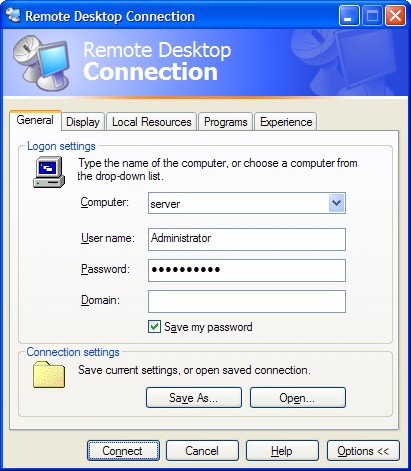
On the other machine create a Remote Desktop Profile (RDP) file. To do this click Start/Run and type mstsc.exe. On the Remote Desktop Connection dialog that appears click “Options”. You’ll get this screen:
rdp1.JPG

Select the name of the computer you will connect to and enter the username and password. Check “Save my password”.

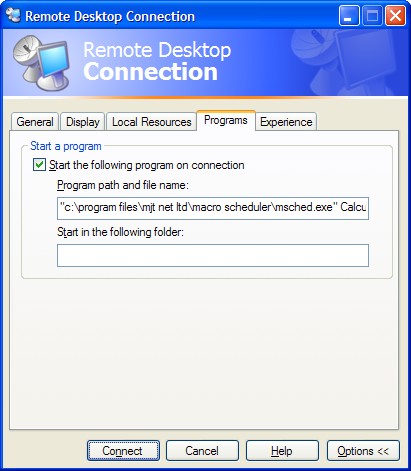
Click the “Programs” tab. Here you tell Remote Desktop Connection to run the Macro Scheduler macro:
rdp2.JPG

Enter the path to Macro Scheduler’s executable followed by the macro name:

“c:\program files\mjt net ltd\macro scheduler\msched.exe” myMacro

Under “Display” you can set whether the desktop session should run full screen, or whatever resolution you like. It doesn’t really matter.

Back under the “General” tab hit “Save As” and save the rdp file.

Now, when you want to run the routine you just issue:

mstsc.exe rdpfile.rdp

E.g. if you saved the file to c:\my documents\serverauto.rdp you would run:

mstsc.exe “c:\my documents\serverauto.rdp”

When this runs, a desktop session is created and the UI macro is executed – it works because the only interactive Window Station is the one created by Remote Desktop Connection. When the macro finishes, the session is logged out again. The desktop session appears on your screen. Nothing appears on the remote machine – it remains logged out. But Remote Desktop Session creates a window session and the Macro Scheduler UI routine runs within it. You can now schedule this command to run at the required time, either in Macro Scheduler or in Windows Task Scheduler.

The beauty of this approach is that it works even when both machines are locked or logged out. The only time it won’t work is if you minimize the Remote Desktop Connection. When you do that the session stops responding to keystrokes and mouse events. So if you are logged in, leave it open.

This method is ideal for scheduling processes to run on remote machines or on customer machines, where you can control the schedule from your end. But it is equally useful for scheduling processes internally where you don’t want the machine physically logged in. Until we find a replacement for AutoLogon in Vista, it is also a nice workaround if you need to schedule macros in Vista and do not want to leave the server unlocked.

Instead of setting the macro to run in the Remote Desktop Connection dialog, you could set the macro to run on startup and have the script check to see whether the current user is logged in via the console or via RDP (to avoid it running when a regular log in takes place). An example of how to determine whether the user is logged in locally or via Remote Desktop can be found here.

With Macro Scheduler scheduling the script on the client, other ways to start the script once the desktop connection is open could include assigning the remote script to a hotkey and having the client script send the key sequence; installing msNet on the server and issuing a HTTPRequest to run the script once the desktop connection is up; or if the two computers clocks are well synchronised just schedule the script on the server to happen shortly after the desktop connection is scheduled, allowing enough time for the log in to take place. Instead of installing Macro Scheduler on the remote machine you could also compile the macro to an executable and install just the executable macro on the server, and set it to run when Remote Desktop connects.